
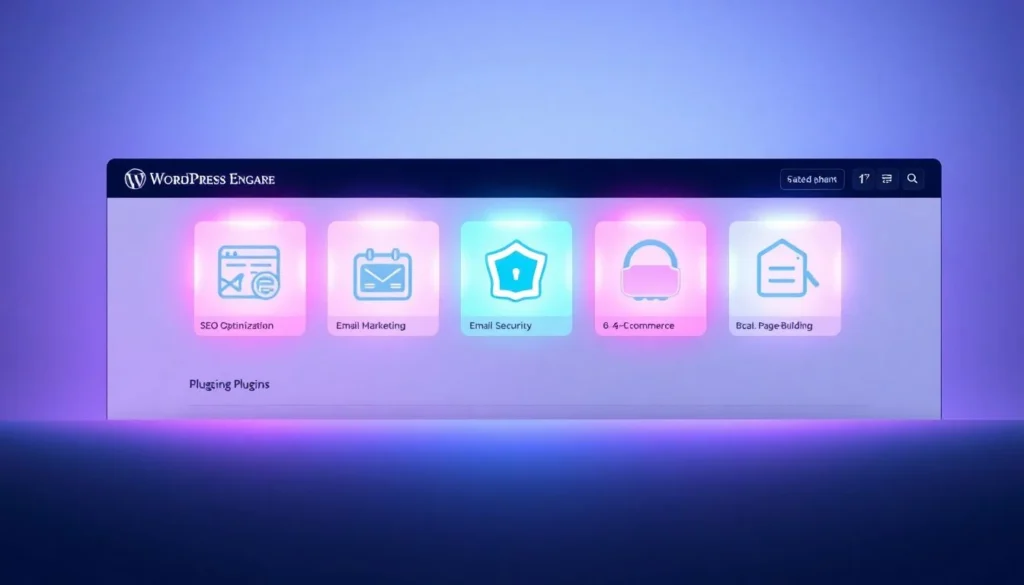
A new WordPress site does not need a long list of plugins. It needs a few jobs done reliably: speed, backups, security, search-engine basics, and spam control. This article describes five types of plugin that are useful on a new site, with well-known examples in each type. It is not a ranked “top five,” and it does not quote download counts. Before you install anything, check the plugin’s page in the WordPress.org directory for compatibility with your WordPress version, how recently it was updated, and reviews from people who use it in the same way you will.
1. Caching and performance
A caching plugin stores a ready-to-send version of your pages so WordPress does not have to rebuild every page from scratch for every visitor. That usually makes the site feel faster and reduces the load on your hosting. If your host already provides a cache — many do — start there. This site, for example, runs on a host that works with LiteSpeed Cache. Using two full-page caches at once can cause confusing results, so pick one stack and stay with it.
After you enable a cache, test a couple of pages while logged out. Make sure a change you publish actually appears (you may need to clear the cache). If you use a page builder or a membership plugin later, read that plugin’s notes on caching; some dynamic features need to be excluded from the cache.
2. Backups
A backup plugin is the dullest item on this list and the one you will be most grateful for. It should copy both your files (themes, plugins, uploads) and your database (posts, pages, settings). Send copies off the server: a backup that lives only on the same hosting account can disappear with the site.
UpdraftPlus is a widely used example of this type; other backup plugins and many hosts offer scheduled backups too. Whatever you choose, run a test restore on a staging copy or a spare site once, so you know the backups actually work. A file you have never tried to restore is only a hope.
3. Security
A security plugin cannot make a neglected site safe, but it can close obvious holes: it may limit login attempts, watch for file changes, and help you keep software updated. Wordfence is a well-known example; there are others. The basics still matter more than any brand name: strong unique passwords, two-factor authentication on admin accounts, a small number of administrator users, and regular updates of WordPress, the theme, and the plugins you actually use.
Remove plugins you are no longer using. Every installed plugin is a little more code that can go out of date. If a plugin has not been updated in a long time, treat that as a warning sign and look for an alternative rather than leaving it “just in case.”
4. SEO basics
An SEO plugin will not write good pages for you, and it will not get a thin site approved for ads. What it can do is help you set titles and descriptions, generate an XML sitemap, and avoid obvious mistakes such as accidentally noindexing the whole site. Yoast SEO is one widely used example; this site already uses it for sitemaps and metadata. Other plugins in the same category exist. Use one, not several, and keep the settings simple until you have a reason to change them.
Search engines still have to find useful, original writing. A plugin is a helper for housekeeping, not a substitute for that work.
5. Spam and comment control
If you allow comments or run a contact form, you will receive spam. A spam-filtering plugin (Akismet is the classic example) or a well-configured form plugin with basic checks will save you time. If you do not need comments, turning them off is a valid choice — and if a post still asks readers to “leave a comment,” edit that line so it matches reality.
How to add plugins without painting yourself into a corner
- Install only what you need this week, not a bundle you might need someday.
- Keep a short written list of what each plugin is for, so a future update does not leave you guessing.
- After every install, click through the homepage, a post, and the contact or tools pages.
- Schedule updates; do not let a security plugin sit unpatched.
- When two plugins offer the same job (two caches, two SEO packs), keep one.
If you outgrow this list — multilingual sites, memberships, heavy forms — add the next plugin for a named reason, and test it on a copy of the site if you can. A calm, small set of tools is easier to maintain than a stack you cannot explain.
What this list deliberately leaves out
You may also want a contact form, a photo gallery, or a cookie banner, depending on the site. Those can wait until the five jobs above are in place. Form and gallery plugins vary a great deal in quality; choose one that is still being updated, and do not install three of them. Cookie or consent tools should match what you actually use on the site (analytics, ads, embedded videos), which is a policy decision as much as a plugin decision.
Page builders are another category this article does not treat as essential for every new site. The block editor can produce a clear layout on its own. A builder is a large extra layer of code and a long-term commitment. If you already use one and it is working, you do not have to rip it out to follow this list. If you are starting from scratch, try the built-in editor first.
Finally, do not judge a plugin by a single “must-have” blog post — including this one. Open the WordPress.org page, look at the last updated date and the compatibility note, and, if you can, try the plugin on a copy of the site. The five types above are a practical starting set, not a rulebook.
Sources
The pages below were opened and checked while this rewrite was prepared (21 November 2026, Asia/Calcutta). Official figures and rules can change. If a live page differs from what is summarised here, follow the official page.